![Weever2020-logo-with-padding.png]](https://support.weeverapps.com/hs-fs/hubfs/Weever2020-logo-with-padding.png?height=40&name=Weever2020-logo-with-padding.png)
Audit Trail for Form Submissions
Audit Trail for Form Builder Changes
Form Reports Page
The Form Reports page contains the audit trail for all form submissions made within your site, including Inspection forms as well.
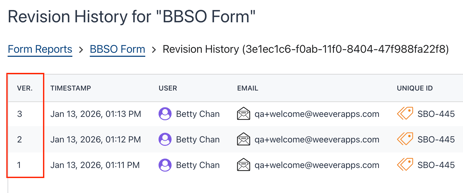
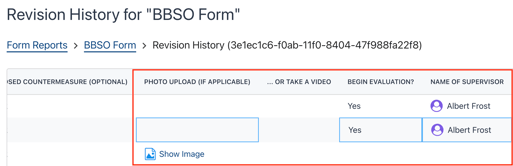
This audit trail keeps track of each saved version of a submission and lists the changes made between version by highlighting fields in blue. You can find this information by:
- Navigating to the Form Reports page
- Selecting the Form you'd like to view audit history for
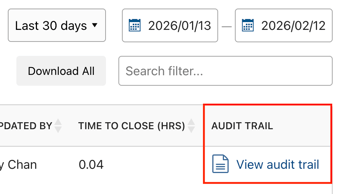
- Scroll to the far right of the page and select 'View audit trail' on the submission you'd like to review
Form Builder Page
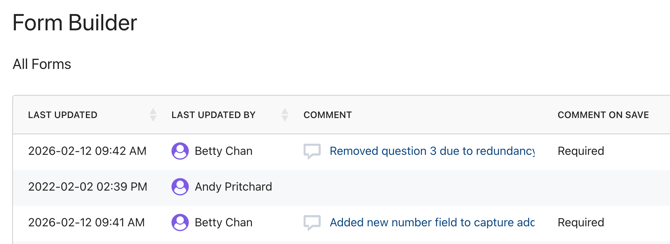
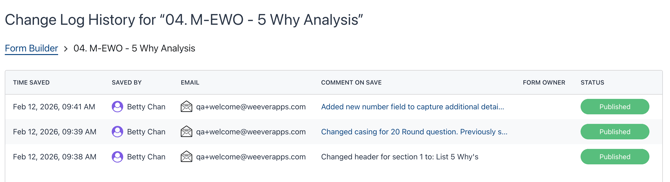
The Form Builder page offers an audit change log to list updates that were made to a form. It will list who made the change, when and a comment left by the user as to what changes were made.
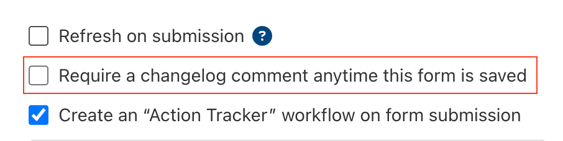
Enabling the Change Log: (This is recommended to only be done once a form is fully built)
- Begin by selecting Edit on a form you'd like to enable the change log for
- Go into the Form Settings for that form
- Check the box to enable the change log comment when the form is saved
Viewing the Change Log:
- On the Form Builder page, scroll to the far right
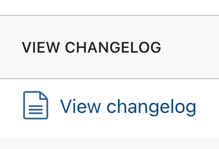
- Select 'View changelog' for the form you'd like to review
- Scroll through the list to review all updates made to this form since the change log was enabled
- You can also see the last made comment and whether or not the change log is enabled on the form directly on the page as well
- Use the columns for Comment and Comment on Save status