![Weever2020-logo-with-padding.png]](https://support.weeverapps.com/hs-fs/hubfs/Weever2020-logo-with-padding.png?height=40&name=Weever2020-logo-with-padding.png)
Steps
1. Navigate to the Scheduled Inspections page and select an inspection to view it's forms.
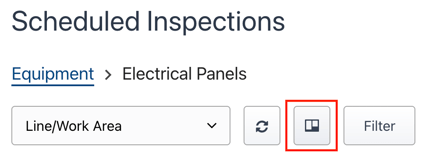
2. Click the Column Order button, located between the Refresh button and the Filter button.
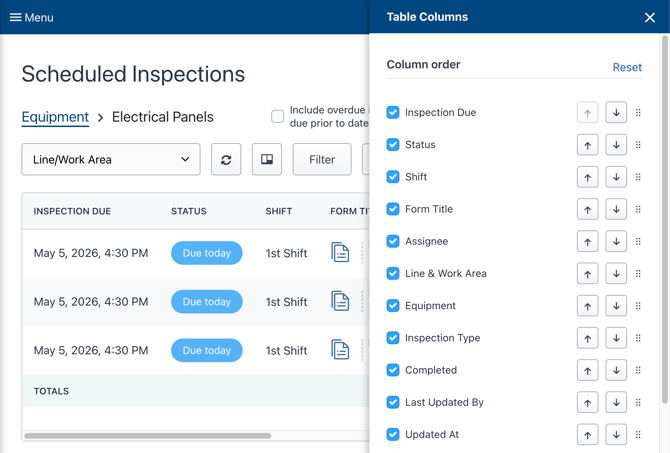
3. In the Table Columns side panel that appears, reorder your columns using one of two methods:
-
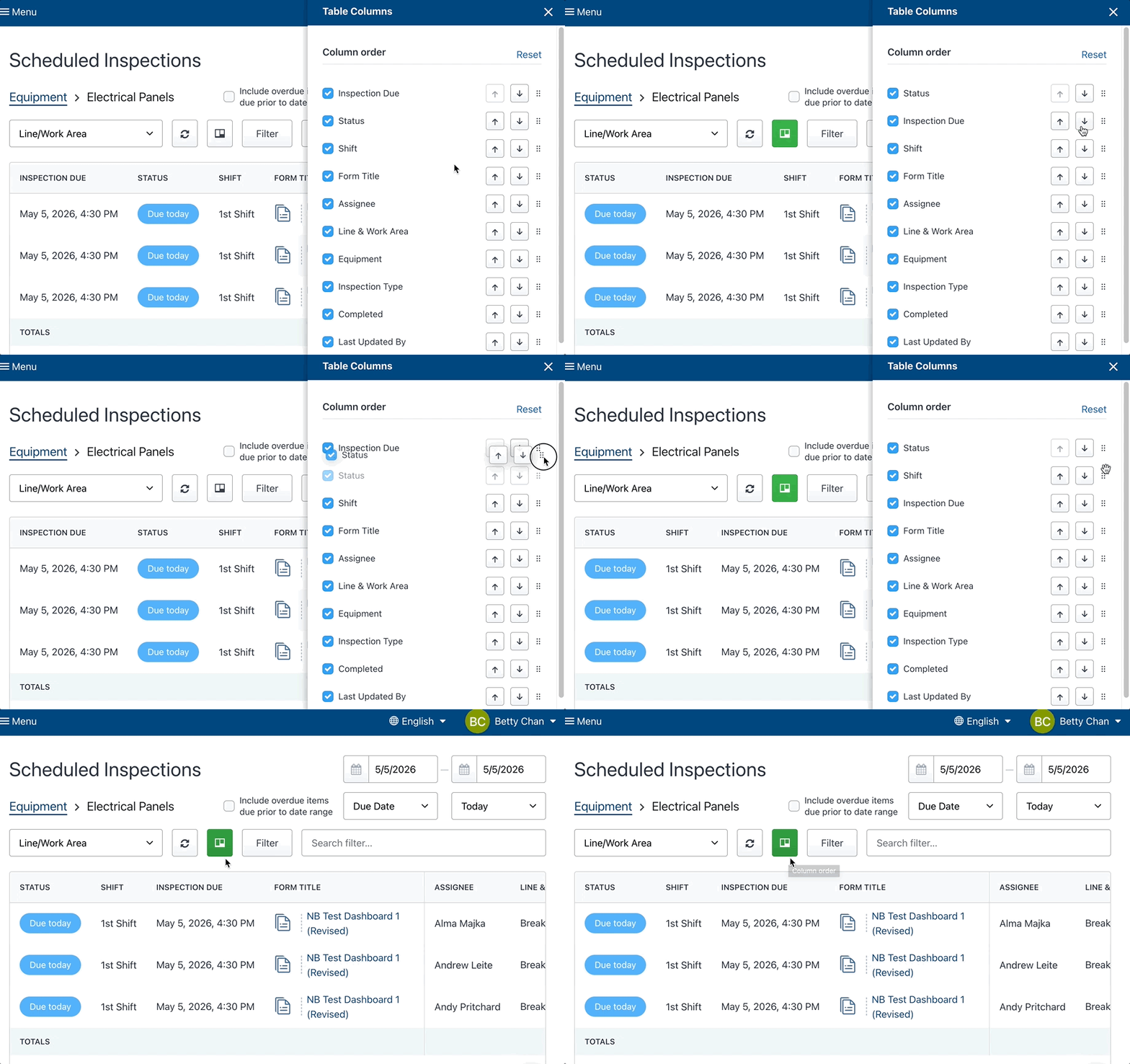
Click the up or down arrows to move a column one space at a time.
-
Click and drag the six-dot handle to drop the column into any position.
- Uncheck a specific column to remove it from view entirely
4. Close the Table Columns side panel to lock in your column order. Your layout will be saved even if you navigate away from the page, switch to a different inspection, or log out.
TIP:
To restore the default column order at any time, reopen the Column Order button and click Reset in the top right of the side panel.
And that's it!
Now you know how to arrange the Scheduled Inspections page column structure.