![Weever2020-logo-with-padding.png]](https://support.weeverapps.com/hs-fs/hubfs/Weever2020-logo-with-padding.png?height=40&name=Weever2020-logo-with-padding.png)
Results will give you full slicer and clicking functionality of the Dashboard within a form. If a Dashboard tile is clicked, it will open a new browser tab. Leaving the current form being filled in open and available.
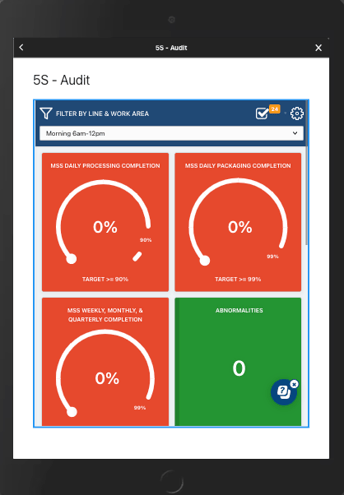
Step 1: Edit the Infobox field
- Start by adding an Infobox field to the form you'd like to show the Dashboard on.
- Then select the HTML editor within the Infobox
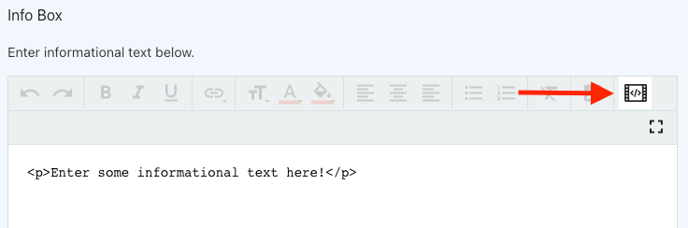
Step 2: Apply the iframe code
- Copy and paste the following code, and replace the "<p> Enter some informational text here!</p>" shown in the Infobox with the code below.
<style>
.cropped-iframe-wrapper {
width: 100%;
height: 800px;
overflow: hidden;
position: relative;
border: 4px;
border-style: solid;
border-color: #2196F3
}
.cropped-iframe-wrapper iframe {
position: relative;
top: -50px; /* Crops the top 20px visually */
width: 100%;
height: calc(100% + 50px); /* Extend height to avoid internal scrollbars */
}
</style>
<p class="cropped-iframe-wrapper">
<iframe src="ADD DASHBOARD URL HERE" allowfullscreen=""></iframe>
</p>
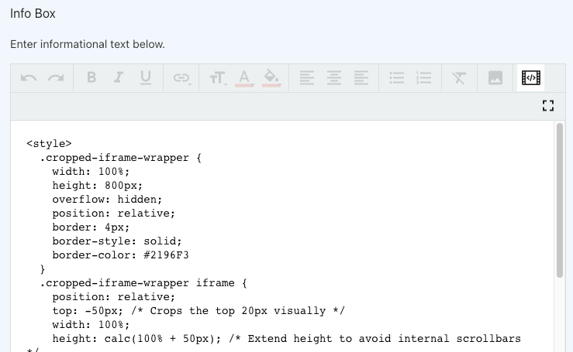
Step 3: Add your URL
- Copy the URL from your Dashboard page and paste it where you see "ADD DASHBOARD URL HERE" within the code.

- With your URL added, it should look like this.

And that's it!
Now your staff can have full visibility of the Dashboard metrics directly in the form they are working in.