![Weever2020-logo-with-padding.png]](https://support.weeverapps.com/hs-fs/hubfs/Weever2020-logo-with-padding.png?height=40&name=Weever2020-logo-with-padding.png)
What this article will help you achieve:
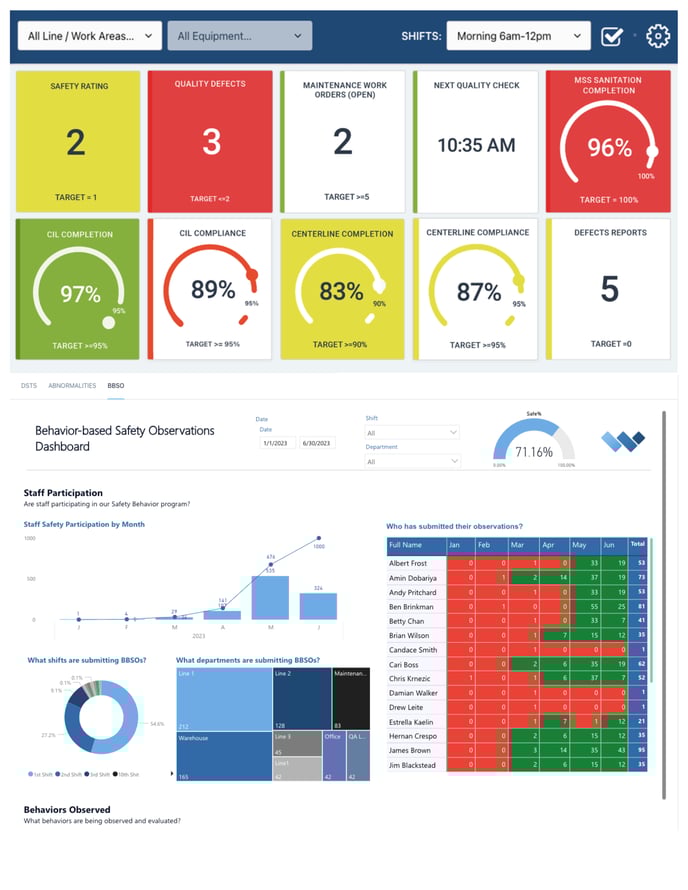
Examples of External links
All external links must contain the full URL, with the https:// being present as well- Reporting (Power BI, ZPI, etc)
- Websites
- Videos
Step 1: Create the new tab
- Navigate to your Dashboard page
- Select the Settings button to edit the page
- In the bottom Tab section, select the + New Tab button to add a new tab
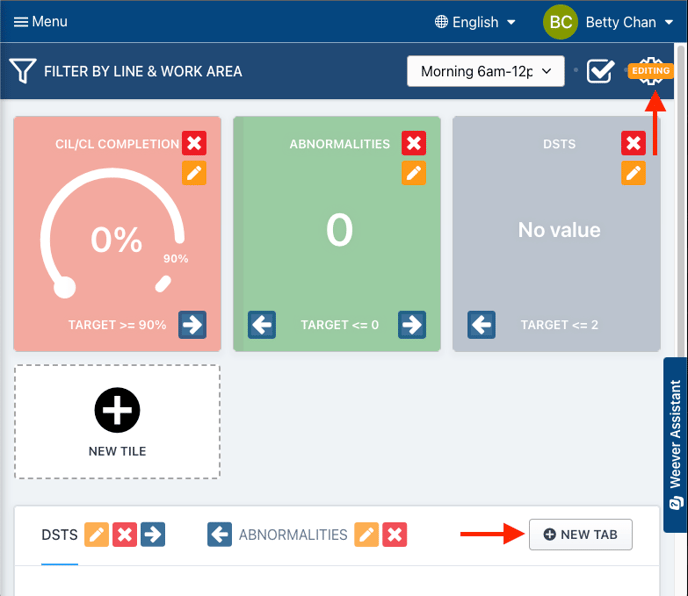
Step 2: Add the tab information
- Give the tab a Title
- Select External Content
- Paste your copied URL in the Which URL would you like to display in the iframe field
- Choose an appropriate Aspect Ratio
- Save your changes
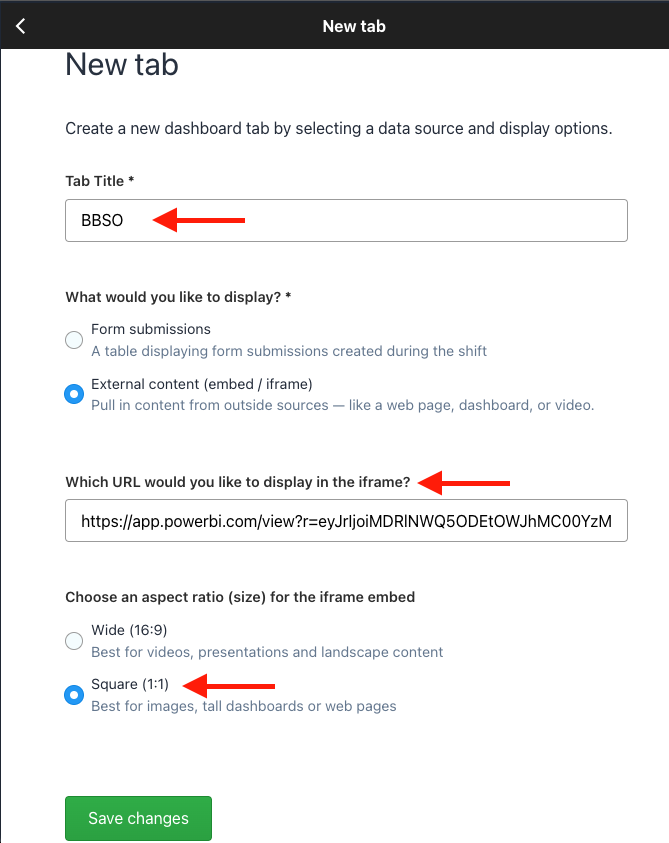
NOTE FOR ADDING REPORTS TO THE DASHBOARD
The URL used for any reporting software (Power BI, ZPI, etc.) must be the Embed code version of the URL. Not the URL from the browser search bar.Correct URL (example for Power BI):
-1.png?width=465&height=173&name=image%20(6)-1.png)
Incorrect URL from the browser search bar (example for Power BI):

And that's it!
Now you can successfully add any external media, reporting or websites that would greater enhance your teams experience with the Dashboard.