![Weever2020-logo-with-padding.png]](https://support.weeverapps.com/hs-fs/hubfs/Weever2020-logo-with-padding.png?height=40&name=Weever2020-logo-with-padding.png)
There are 3 multiple choice fields available within the platform:
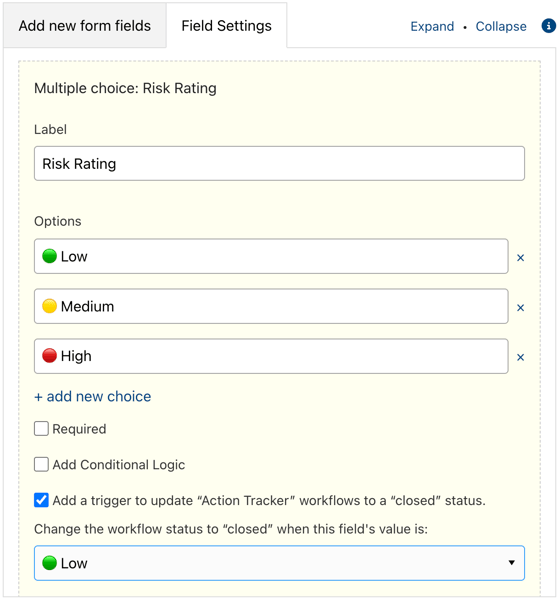
Multiple Choice
- Allows users to select a single option from a list of visible options.
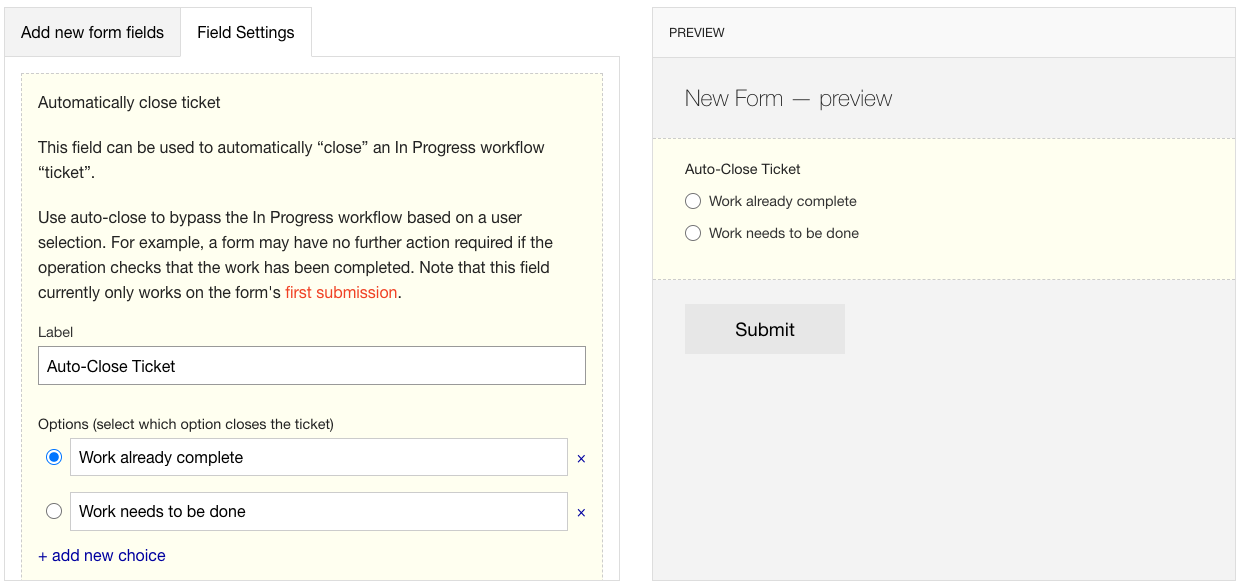
- Have the ability to auto close workflows based on a single selection. This means that you can set up a form to create a workflow when submitted by using the Form Settings in the Form Builder, and then create a multiple choice selection that overrides this and automatically closes the workflow. Learn more about form settings here.
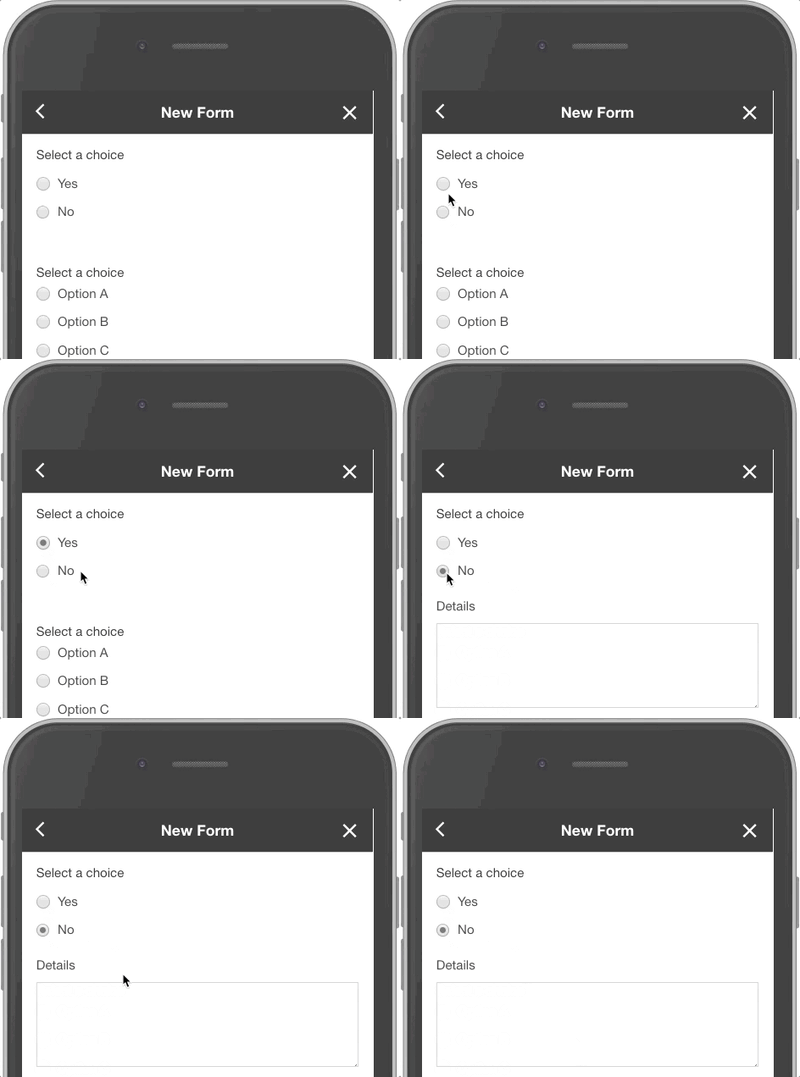
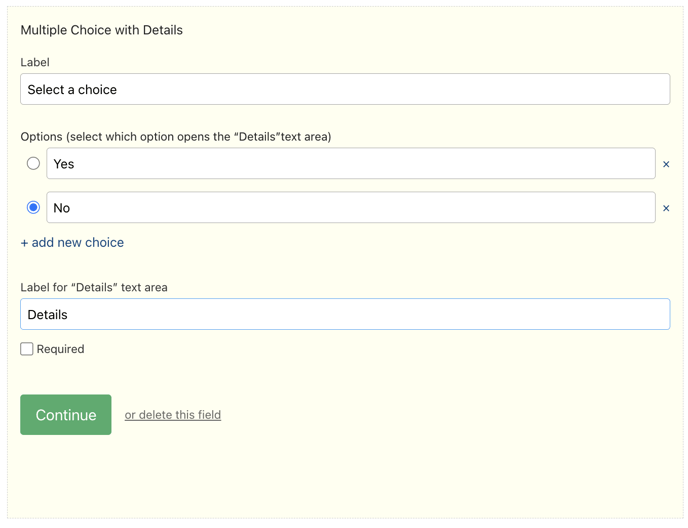
Multiple Choice with Details
- Collect more information (via a free text field) when a specific option is selected in the multiple choice.
- Note: This field offers similar functionality to using conditional logic to reveal a paragraph field based on a multiple choice selection.
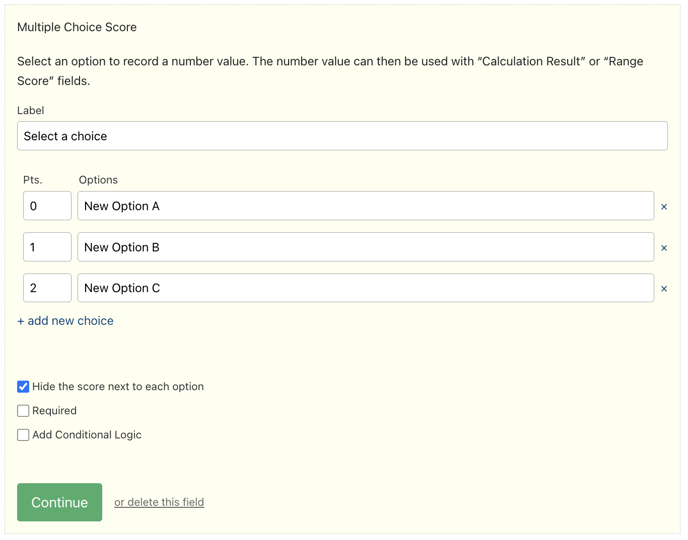
Multiple Choice Score
- Select a single option with an allocated number value from a list of visible options.
- The number value can then be used with “Calculation Result” or “Range Score” fields (see below)
- Administrators can hide the score, which is useful for quizzes (learn more about quizzes here: https://support.weeverapps.com/quizzes)
Auto-close Workflow
- This field looks like a multiple choice field to the user submitting the form. Administrators, however, can set this field up to automatically close the corresponding workflow if a certain option is selected. For more information on this feature, check out this article.
Multiple Choice Score fields can interact with the Calculation Results and Range Score fields.
Calculation Result
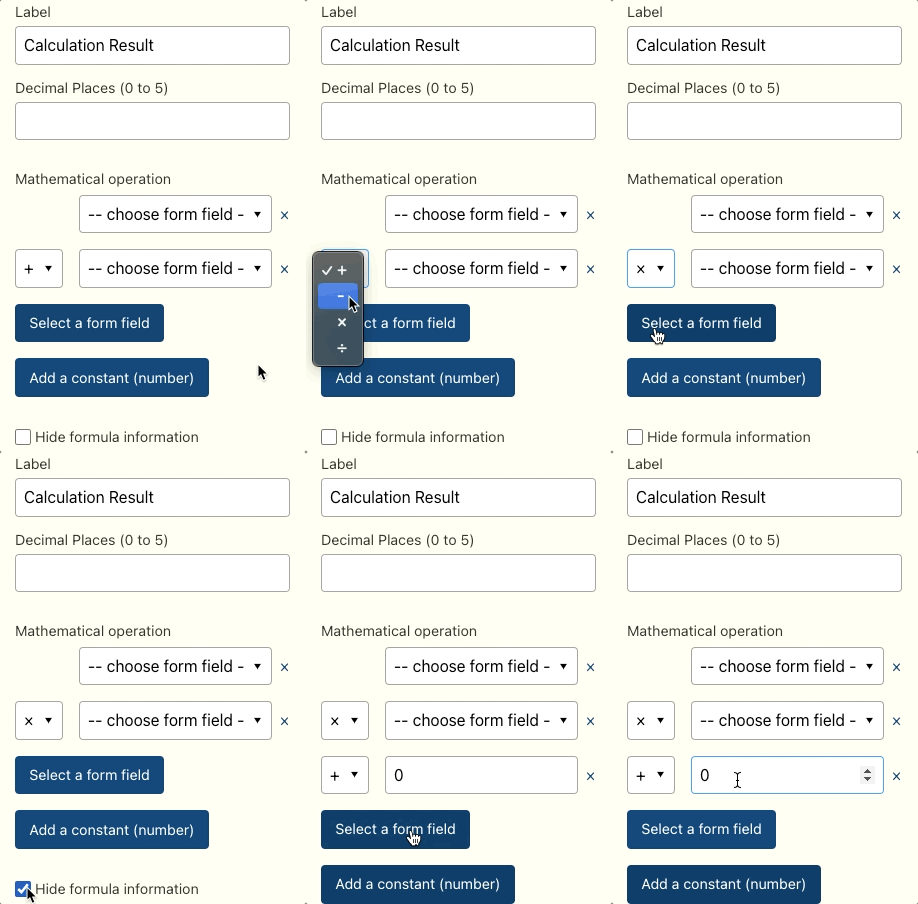
- The Calculation Result field displays the result of a simple math operation using existing numeric fields in your form (ie: Multiple Choice Score, Checkbox Score, Number)
- Choose between addition, subtraction, multiplication and division when applying which operation should be taking place in the formula.
- You can also add “constant numbers” to your equation for uses like tax calculations and temperature conversions.
- Hide the the formula from being seen on the Form
Range Score
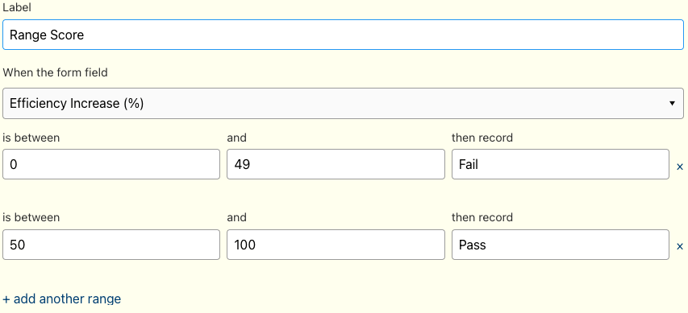
- The Range Score field triggers a text result to display when a numeric field (Multiple Choice Score, Checkbox Score, Number) falls inside a given range (e.g., between 70 to 100 = “Pass”).
- Add as many ranges as needed (Note: ranges must not overlap).
Learn about how all the fields work here: How does each field in Form Builder work?