![Weever2020-logo-with-padding.png]](https://support.weeverapps.com/hs-fs/hubfs/Weever2020-logo-with-padding.png?height=40&name=Weever2020-logo-with-padding.png)
Video Overview:
Step 1: Navigate to User Management
Navigate to the User Management page in your Weever account.
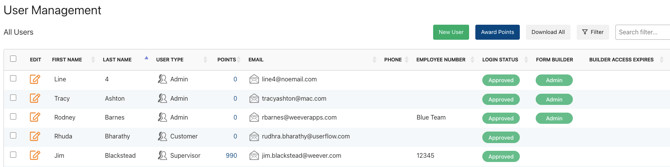
Step 2: Find the Supervisor and tap Edit
Find the Supervisor user you want to update in the list and tap Edit.
Step 3: Enable the Form Builder Access Toggle
In the user's edit screen, you'll see a Form Builder access toggle. Switch it on to grant access.
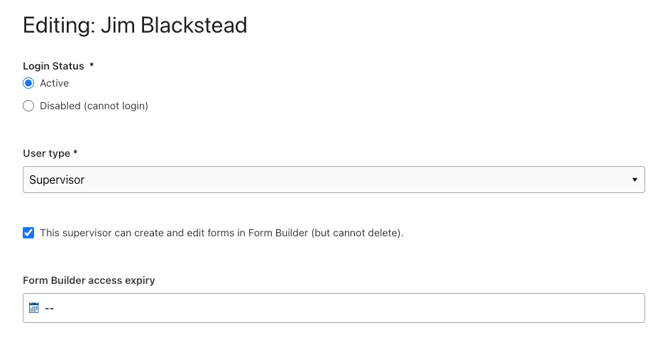
Step 4: Set an Expiry Date
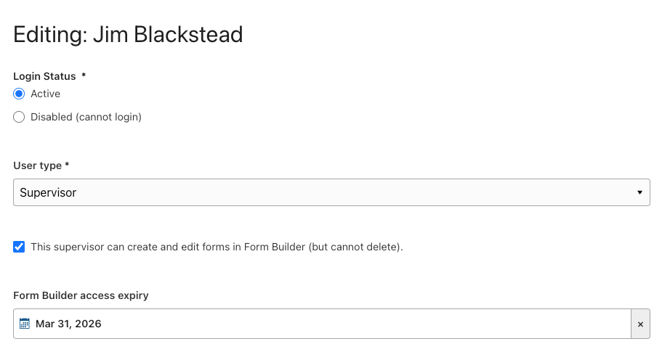
Once the toggle is on, an expiry date field will appear. If you wish, you can set a date for when this access should end. Weever will automatically remove the supervisor's Form Builder access on that date — no manual cleanup needed. Click Save to apply the changes. The supervisor will now have Form Builder access until the expiry date you set.
Step 5: View the Access in User Management
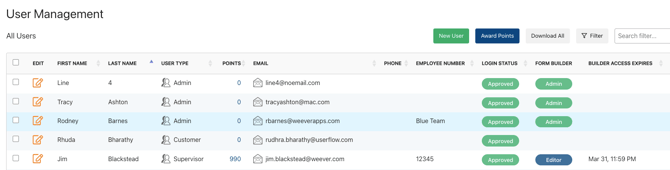
Back in User Management, you'll be able to see the supervisor's Form Builder access listed under the Form Builder column for Editor, along with the expiry date.
And thats it!
Now you know how to manage supervisor form building access.